If you have problems with the installation or the implementation of your project and need help, we are at your side with advice and action. You can reach our personal support by phone and live chat as well as around the clock by email.
If you cannot solve a problem yourself, we can also solve your interface installation problems online. A telephone and an Internet connection are required for online support. Arrange an online session with us.
If you cannot find a fixture in our library, we will be happy to create a suitable fixture for your DMX device. For this we need a channel description of the DMX device. (Operating instructions / PDF)
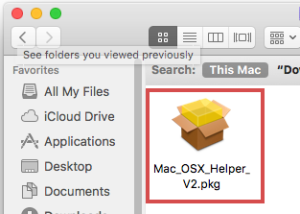
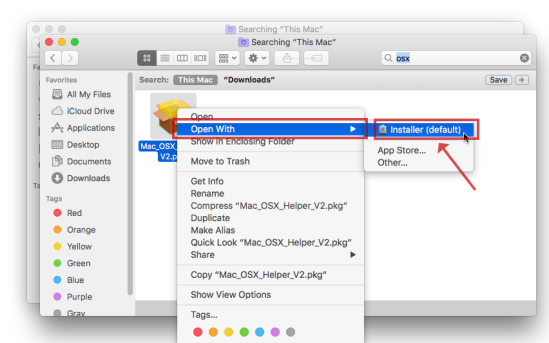
As of macOS 10.9, Apple locks the driver out at the factory level - i.e. the required driver is installed but can't be used. The macOS Helper fixes this until Apple resolves the issue in a newer operating system version.
Note! The USB2DMX® interface is not yet plugged into the USB port.
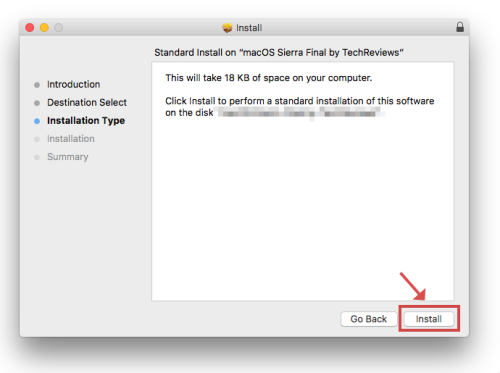
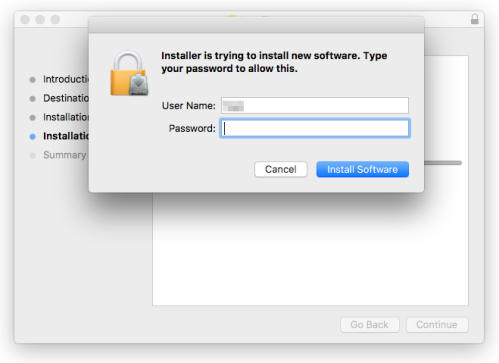
Enter your macOS user password . → Install Software
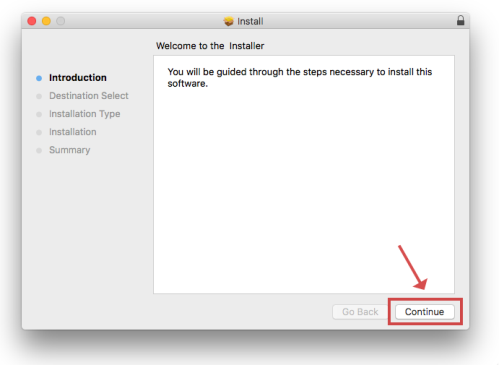
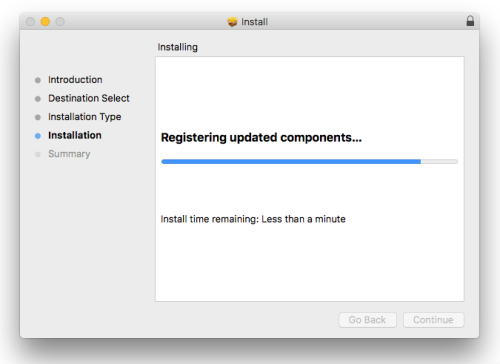
Info Please wait until the installation is complete. This may take 1-2 minutes.
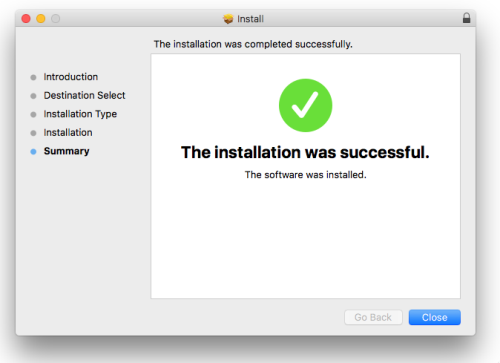
The installation has completed successfully → Close
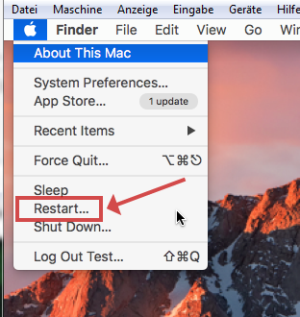
→ Apple → Restart
Important! Be sure to restart your computer for the changes to take effect.
The macOS USB driver is now unlocked.
The USB2DMX interface can now be connected to the USB port.
Linux USB driver installation
On Linux the driver for the built-in FTDI chip is already part of the system. So there is no driver file to download and nothing to install — only the access rights to the serial port are missing.
Plug in the DMX interface and check in the terminal whether the system has detected it and assigned it to a port such as ttyUSB0.
dmesg | tail
Then run this command to give your user the access rights it needs for that serial port.
sudo usermod -a -G dialout $USER
Finally log out completely and log back in so that the new permissions take effect.
Note! Restarting the terminal alone is not enough — group membership is only applied when you log in.
The USB2DMX interface is now ready for use.
Android USB driver installation
A separate driver installation is not required, because our apps already have the necessary drivers fully built in.
Note! That is why there is no Android driver file on the download page — none is missing, there is none.
AIR2DMX WLAN interface
Connect AIR2DMX with WLAN router (router mode)
Register AIR2DMX on the WIFI router
Connect the AIR2DMX interface to the power supply.
The power LED lights up orange / WIFI LED flashes blue.
Connect a WLAN end device (laptop / smartphone / tablet) to the AIR2DMX interface.
ActivateWi-Fi on your device.
Select the JMS_AIR2DMX_xxxxxx interface in the WLAN menu and click Connect.
Enter the AIR2DMX WLAN password of the interface. The AIR2DMX password can be found on the housing of the AIR2DMX interface.
WIFI LED glows permanently blue.
Open one Web browser and give the address 2.0.0.1 . The AIR2DMX setup page opens.
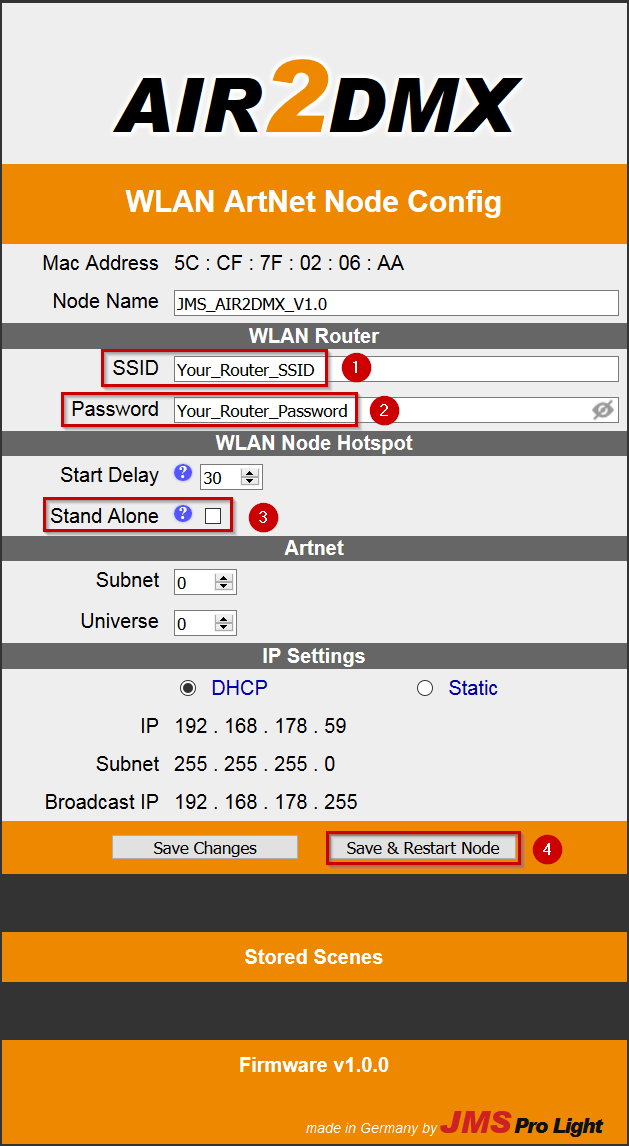
Enter the SSID (name of the WLAN) of your WIFI router.
Enter the WLAN password of your WIFI router.
DeactivateStand-Alone Mode (no tick in the checkbox)
Click Save & Restart Node
The WIFI LED is flashing green (the interface is trying to connect to the router)
After 2-6 seconds, the WIFI LED will light up solid green . (The interface has successfully registered)
The JMS AIR2DMX WLAN interface is now connected to your router. Once switched on, the AIR2DMX interface now connects to the WLAN router automatically.
Note! Should the WIFI LED flash red rapidly after 30 seconds, the WLAN password or SSID was entered incorrectly. In this case, check the entry and pay attention to upper and lower case as well as underscores / hyphens and spaces. Avoid special characters. Don't use a password manager or AutoFill - these functions can unintentionally set the wrong password.
As long as the WIFI LED is flashing red rapidly, you can reconnect to the AIR2DMX interface via your WLAN end device and make the necessary setup corrections.
AIR2DMX does not connect to the router
Note! If the WIFI LED flashes red rapidly after 30 seconds, the WLAN password or SSID was entered incorrectly.
In this case, check the entry
Watch out for upper and lower case
Check for underscores / dashes and spaces.
Avoid special characters. Don't use a password manager
Turn off AutoFill in the browser for the setup page - it can set the wrong password by mistake.
Try a different web browser.
Tested browsers: Firefox / Internet Explorer
As long as the WIFI LED is flashing red rapidly, you can reconnect to the AIR2DMX interface via your WLAN end device and make the necessary setup corrections.
ArtNet HotSpot Mode
Apparently no reaction in HotSpot mode
Note! Deactivate mobile data
In HotSpot Mode, mobile data (WIFI+) must be disabled on the smartphone / tablet. The AIR2DMX interface cannot provide access to the internet. Most mobile devices then try to connect to the internet via the cellular network or other WiFi routers. This means that the AIR2DMX WLAN interface is temporarily or permanently unavailable.
FreeStyler
I can not find a fixture for my DMX device
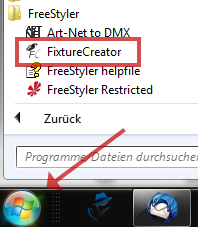
You can use the FixtureCreator to create a fixture for your DMX device.
Start -> FreeStyer -> Fixture Creator
Note! For the correct channel description you need a datasheet of your DMX device.
You can also have us build the fixture — send us the channel description through the contact form.
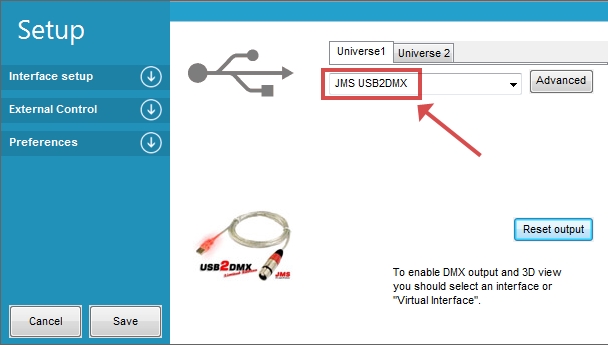
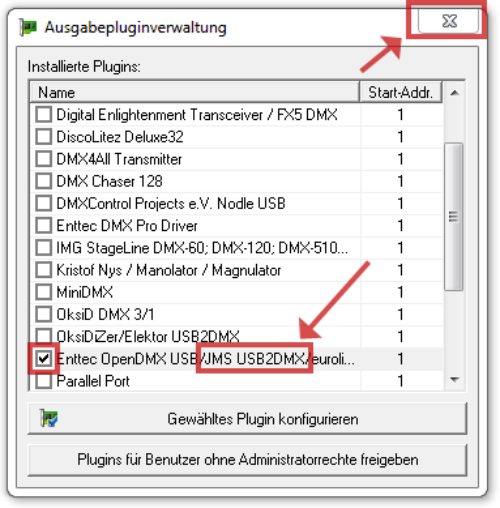
Which interface do I have to choose in FreeStyler?
Note! The USB driver must be installed beforehand.