
Windows
One file, nothing to install. For Windows 10 and 11.
Size 2,3 MB, Date 23 Oct 2026

Service
Your interface is not recognised, the lighting software finds no DMX, or you are stuck during setup? Then we go through it together. You show us your screen, we set up the driver and software with you and tell you on the phone what we are doing. You see every step and can end the connection at any time.
Download
Choose your system. The connection runs over our own server, not over a third-party service.
One file, nothing to install. For Windows 10 and 11.
Size 2,3 MB, Date 23 Oct 2026

With the free program RustDesk. For macOS 11 and later.
You can see which chip your Mac has in the Apple menu under "About This Mac". The first time, you enter our server once. To the instructions

For phone and tablet. You show us your screen, we explain each step on the phone.
Install the app first, then open this page on your phone and tap "Connect to JMS".
How it works
Best start the program before you call, then we can get going right away.
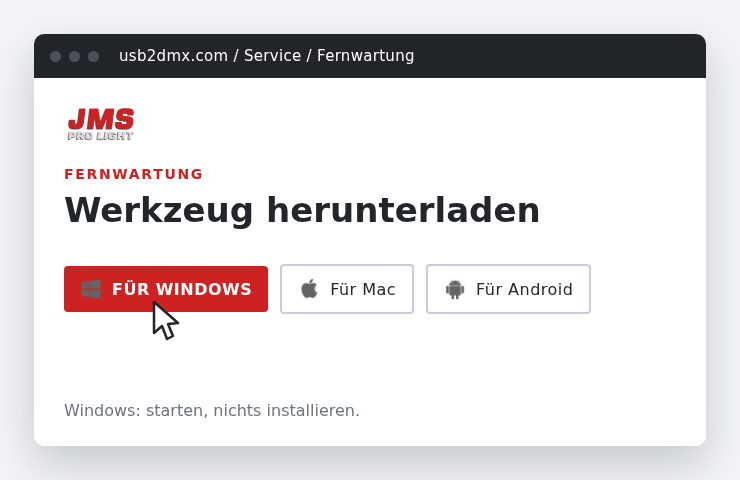
Click "Download program" above. The file is about 2 MB.
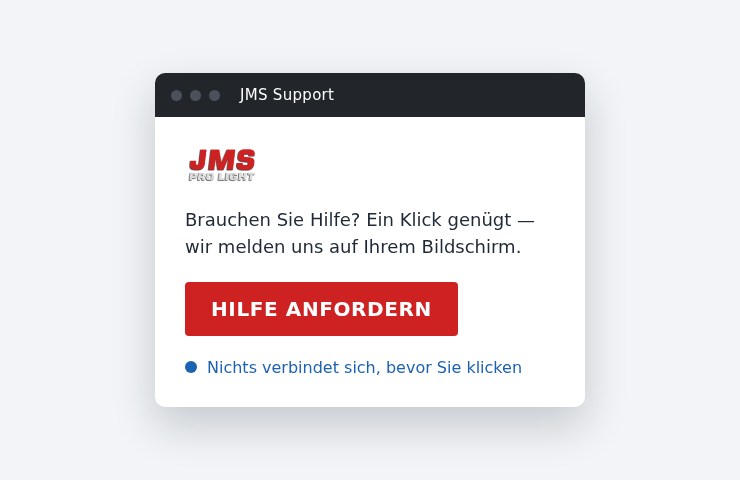
Open the file. The JMS Support window appears. Only when you click "Request help" is a connection made.
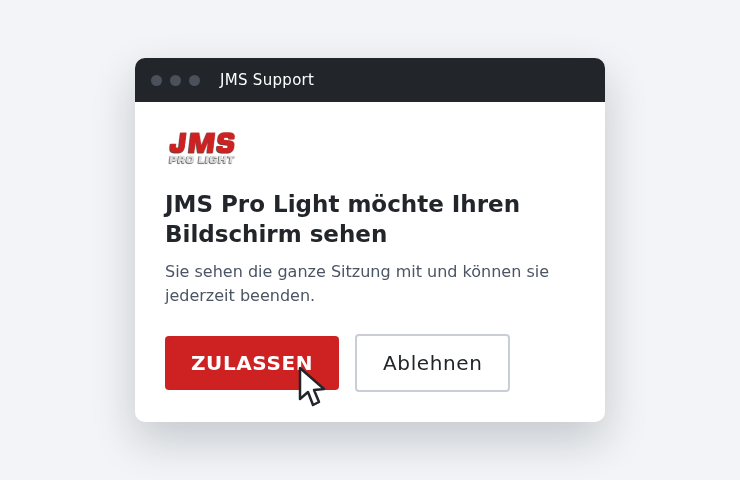
Before the connection is made, JMS Support asks once more. Click "Allow" to start.
The illustrations show the sequence in simplified form. The steps for Mac and Android are in the guides below.
Instructions
Every system asks for your permission the first time. That is the same for all remote support programs and protects your computer.
Download JMS_Support_Windows.exe and double-click it in your downloads folder.
If Windows asks whether to run the file, confirm with Run. If it says "Windows protected your PC", click More info and then Run anyway.
The JMS Support window opens. Click Request help and, if asked, briefly describe the problem.
Call us (+49 (0) 7725 91 93 75) or stay on the line. Your request reaches us and we accept it.
Click Allow. A bar at the top shows you as long as the connection lasts.
To end it, close the window. You can delete the file afterwards; nothing remains on the computer.
Download the file for your Mac above and open it. Drag RustDesk into the Applications folder and start it from there.
If the Mac shows a warning on first launch: open System Settings → Privacy & Security and click Open Anyway at the bottom.
RustDesk asks for two permissions: Screen Recording and Accessibility. Switch on the toggle for RustDesk each time. Apple requires this for every remote support program.
First time only: in RustDesk click the three dots next to your ID, then Network → ID/Relay server. Fill in these two fields, leave the others empty and save with OK:
ID server: fern.usb2dmx.com
Key: Nq2I3YBnhT6
Call us (+49 (0) 7725 91 93 75) and tell us the ID and the one-time password from the RustDesk window.
If RustDesk asks, click Accept. To end the session, close the window. If you do not want to keep RustDesk, drag it from Applications to the Trash.
Install the app MeshCentral Agent from Google Play (button above). It is free.
Open this page on your phone and tap Connect to JMS above. The app opens and connects to our server. Confirm if asked.
Call us (+49 (0) 7725 91 93 75). As soon as we accept the connection, Android asks whether the screen may be shared. Allow it with Start now.
We then see what you see and explain each step on the phone. We cannot operate the phone, Android does not allow that for this app.
To end it, stop the sharing in the notification. If you do not want to keep the app, uninstall it like any other.
If you like, check the downloaded file before starting it. If the sum does not match, please do not start it and call us.
| File | SHA-256 |
|---|---|
| JMS_Support_Windows.exe 2,3 MB · 2026-10-23 | dd00bfea164c3824f9a2da83258c6f3492d85ef5f20cba950c28a595a1c737bc |
Your security
Nothing happens without you. You request help yourself and allow every session yourself.
You see everything. Your screen stays in front of you for the whole session.
You end it whenever you want. Closing the window is enough.
On Windows nothing remains. Nothing is installed; you can delete the file afterwards.
Our own server. All connections run over our server, not over a third-party provider.
Please note Please close all windows with personal or confidential content before the session, and make a backup beforehand.
We look forward to your message or feedback and are happy to answer questions that the website or the FAQ could not answer.